I’m so glad Microsoft keeps me technologically fit.
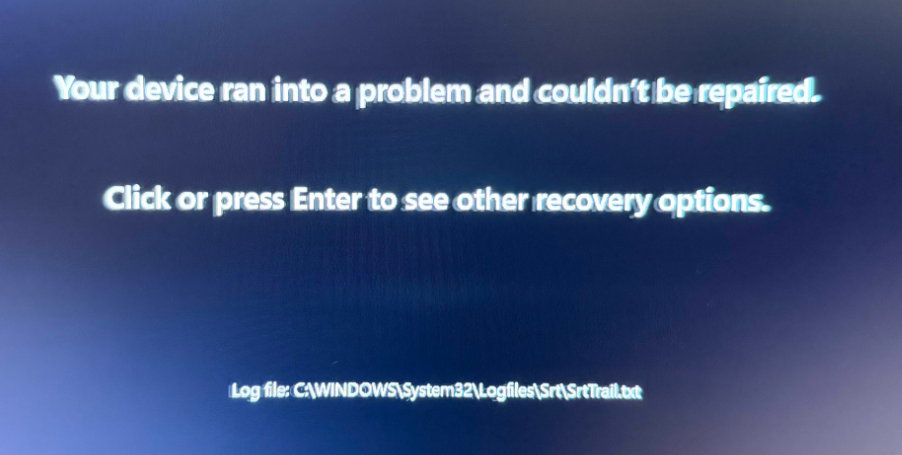
Here’s how I spent Sunday morning instead of preparing the tax paperwork for my home, as planned: troubleshooting a Windows 11 boot loop, digging through recovery logs, and eventually disabling a DVD driver from 2013.
Apparently, keeping a Windows PC running is a great way to prevent your troubleshooting skills from getting rusty.
Long story short: A Windows 11 computer became stuck in an endless Automatic Repair loop following the November 2026 Windows updates. The problem was traced to an outdated optical-disc driver, PxHlpa64.sys, dating from 2013. Disabling the driver restored Windows startup. Removing its obsolete LowerFilters reference subsequently restored the DVD drive.
The issue was resolved on a Lenovo ThinkStation running Windows 11, without reinstalling Windows or losing personal files.
Similar failures have been reported following the November 10, 2026 security update KB5132061, although the exact update responsible for this particular incident could not be conclusively identified.
Symptoms and failed recovery attempts
Following a Windows Update on November 21, 2026, the machine repeatedly entered Automatic Repair. Windows could not start normally or in Safe Mode.
The recovery log SrtTrail.txt reported:
A recently processed boot binary is corrupt.
Repair action: Uninstall latest LCU
Result: Failed, error 0x905
The following recovery procedures were attempted without success:
- Automatic Startup Repair
- Safe Mode
- System Restore to a point before the failure
- Uninstalling the latest Windows quality update
- System File Checker (SFC), which found no integrity violations
The likely root cause: an old boot-start driver
Further investigation identified:
C:\Windows\System32\drivers\PxHlpa64.sysThis driver is associated with the legacy PxEngine software used by older CD/DVD recording applications, including products based on Sonic/Roxio technology.
The installed file was dated September 3, 2013. More importantly, its Windows registry configuration showed:
Start    REG_DWORD    0x0
Group    REG_SZ       Filter
Start = 0 means the driver is loaded very early during Windows startup. An incompatible driver at this stage can interfere with booting, even before Safe Mode becomes available.
Similar cases involving PxHlpa64.sys have been reported following Windows 11 updates, including KB5132061. In this case, disabling the driver immediately restored Windows startup, strongly implicating it in the failure.
Fix 1 — Disable PxHlpa64.sys from Windows Recovery
Warning: This procedure modifies the Windows registry. It should only be used if the same driver is present and registered on the affected computer. Back up important data where possible. Incorrect registry changes can prevent Windows from starting.
Step 1 — Open Command Prompt in Windows Recovery
Navigate to:
Troubleshoot → Advanced options → Command PromptStep 2 — Load the offline Windows registry
The examples assume Windows is installed on C:. Verify the correct drive letter first, since it may differ in the recovery environment.
reg load HKLM\OFFSYS C:\Windows\System32\Config\SYSTEMThis makes the registry of the non-booting Windows installation accessible for inspection and repair.
Step 3 — Determine the active control set
reg query HKLM\OFFSYS\Select /v CurrentIn this case, the result was 0x1, corresponding to ControlSet001. If your value is different, use the corresponding control set in the following commands.
Step 4 — Check the driver startup configuration
reg query "HKLM\OFFSYS\ControlSet001\Services\PxHlpa64" /v StartThe result was:
Start REG_DWORD 0x0If the driver service does not exist, this particular fix may not apply.
Step 5 — Back up the driver settings
reg export "HKLM\OFFSYS\ControlSet001\Services\PxHlpa64" C:\PxHlpa64_backup.reg /yStep 6 — Disable the driver
reg add "HKLM\OFFSYS\ControlSet001\Services\PxHlpa64" /v Start /t REG_DWORD /d 4 /fThis changes the startup setting from 0 (Boot Start) to 4 (Disabled).
In simple terms: Windows is instructed to stop loading this old driver during startup. The driver file remains on disk, and the change can be reversed if necessary.
Verify that Start is now 0x4:
reg query "HKLM\OFFSYS\ControlSet001\Services\PxHlpa64" /v StartThen unmount the registry:
reg unload HKLM\OFFSYSRestart Windows normally.
Result: Windows successfully booted. Multiple subsequent restarts also worked.
Fix 2 — Restore the DVD drive by removing LowerFilters
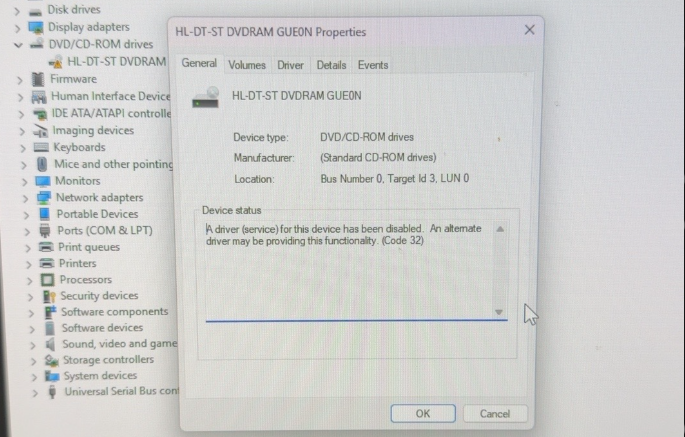
After Windows was restored, Device Manager displayed a yellow warning icon for the DVD drive:
A driver (service) for this device has been disabled. An alternate driver may be providing this functionality. (Code 32)
The problem was that the DVD drive still referenced PxHlpa64, even though the driver had been disabled.
What are LowerFilters, and why can they be removed?
Windows uses a standard driver to communicate with a DVD drive. Additional software can install optional filter drivers to add functions such as disc burning or other optical-media features.
LowerFiltersis a Windows registry setting listing additional drivers that operate below the main device driver in the device stack.In this case, the DVD device class contained only
PxHlpa64. Because that driver had been disabled, Windows could no longer load the filter, resulting in Device Manager error Code 32.Removing the reference was appropriate because it pointed exclusively to the obsolete, disabled driver. The standard Microsoft DVD driver did not depend on it.
Important: Removing
LowerFiltersis not universally safe. Other systems may contain additional filter drivers required by installed software. Always inspect the value before deleting it. Some specialized disc-burning functions may stop working even when the DVD drive itself works normally.
Step 1 — Check the existing LowerFilters value
Once Windows starts successfully, open Terminal (Admin) and run:
reg.exe query "HKLM\SYSTEM\CurrentControlSet\Control\Class\{4D36E965-E325-11CE-BFC1-08002BE10318}" /v LowerFiltersIn this case, the only entry was PxHlpa64.
Step 2 — Back up the DVD class registry settings
reg.exe export "HKLM\SYSTEM\CurrentControlSet\Control\Class\{4D36E965-E325-11CE-BFC1-08002BE10318}" "C:\DVD_Class_Backup.reg" /yStep 3 — Remove the obsolete LowerFilters value
Only proceed if LowerFilters contains exactly PxHlpa64 and no other drivers.
reg.exe delete "HKLM\SYSTEM\CurrentControlSet\Control\Class\{4D36E965-E325-11CE-BFC1-08002BE10318}" /v LowerFilters /fThis removes the registry value, not the entire registry key and not the DVD device driver.
Step 4 — Restart and verify the DVD drive
Restart Windows, then open:
Device Manager → DVD/CD-ROM drives → Properties → GeneralIn this case, the error disappeared and Windows reported:
This device is working properly.
The DVD drive was operating with the standard Microsoft driver. No additional driver installation was necessary.
Final result
After disabling PxHlpa64.sys and removing its DVD LowerFilters reference:
- Windows 11 booted normally.
- Multiple restarts completed successfully.
- The DVD drive was recognized without errors.
- Obsolete multimedia applications were subsequently uninstalled.
- Windows Update ran successfully again.
The old PxHlpa64.sys file remained on disk, but its startup setting stayed at Start = 4. There was no need to delete it manually.
No Windows reinstall was required.
Could this fix help other affected systems?
If Windows 11 enters an Automatic Repair or SrtTrail.txt boot loop after an update, and standard recovery methods fail, checking for the legacy PxHlpa64.sys driver may be worthwhile — particularly on older systems with optical drives or legacy disc-burning software.
The issue is not necessarily specific to Lenovo, and KB5132061 is not confirmed as the trigger in every case. However, the combination of an old boot-start filter driver and a recent Windows update is a useful diagnostic lead.
The key lesson: before resetting or reinstalling Windows, check whether an obsolete third-party boot driver is preventing startup.